Limited Warranty

Cuando compras un producto Logic, adquieres tranquilidad y garantĂ­a de fĂĄbrica.

Varios

Consejos que pueden interesarte.

El nĂşmero IMEI lo puedes encontrar presionando las teclas *#06# en tu telĂŠfono. TambiĂŠn puedes encontrarlo en la etiqueta del producto, la cual se encuentra debajo de la tapa de la baterĂ­a y la baterĂ­a.

No, la Tablet de Logic modelo T7 EdiciĂłn Limitada de Claro no trae Bluetooth, pero si viene con conectividad Wi-Fi que le permite conectarse a redes inalĂĄmbricas.

Las capturas de pantalla solo pueden tomarse con un telĂŠfono celular que tenga una versiĂłn de Android 4.0 o superior. Para crear una captura de pantalla, por favor mantenga presionado el botĂłn para bajar el volumen y el botĂłn de Power simultĂĄneamente por alrededor de dos segundos.

La tarjeta microSD es una tarjeta de memoria para uso con dispositivos mĂłviles, para ampliar la capacidad de almacenamiento interno de la unidad.
1. Para instalar la tarjeta microSD, quite, con cuidado, la tapa del telĂŠfono (no aplica en todos los casos). 2. Retire la baterĂ­a (no aplica en todos los casos).
3. Localice la ranura para la tarjeta microSD. Oriente la tarjeta con los contactos dorados hacia abajo. Deslice, con cuidado, la tarjeta en la ranura hasta que se acomode en su posiciĂłn.
4. Para extraer la tarjeta microSD, deslice la tarjeta y retĂ­rela con cuidado.
5. Vuelva a colocar la baterĂ­a y la tapa (no aplica en todos los casos).

Cuando entra una llamada aparece un mensaje de notificaciĂłn en la pantalla.
– Para contestar la llamada, mueva el ícono hacia la derecha.
– Para rechazar una llamada, mueva el ícono hacia la izquierda.
– Para enviar un mensaje de texto, en vez de contestar, mueva el icono hacia arriba.

Usted puede buscar contactos en la agenda de su telĂŠfono, cuentas de e-mail o nombres. Presione el botĂłn de MenĂş para elegir Contactos, Importar/Exportar, cuentas, eliminar, enviar mensajes o compartir contactos disponibles.

La pĂĄgina inicial en el interface del navegador se desplegarĂĄ al abrir el navegador, usted puede cambiar este parĂĄmetro a su pĂĄgina favorita en los ajustes del navegador. En esta aplicaciĂłn, usted podrĂĄ visitar todas las pĂĄginas de internet, descargar recursos de servidores o disfrutar de videos en lĂ­nea.

Tu nuevo Smartphone LOGIC lo puedes manejar a travĂŠs de comandos de voz. Puedes efectuar bĂşsquedas por el Internet o llevar a cabo otras funciones en tu telĂŠfono simplemente hablando. Selecciona el icono del micrĂłfono en cualquier pantalla que aparezca y sigue las instrucciones.

Por favor contactar al operador “Life Wireless” para mayor información.

WEB: http://www.lifewireless.com/stores.php

http://www.lifewireless.com/support.php

TelĂŠfono: 1-888-543-3620
Correo: info@lifewireless.com
Horarios: L-V: 8AM – 10PM EST
Sa: 8AM – 8PM EST
Do: 8AM – 8PM EST

1. Desinstala las Aplicaciones que No Uses: Si tienes una aplicación que no usas, es mejor que la desinstales, así evitarás que se autoejecute en segundo plano y que consuma memoria caché y recursos inútilmente. Existen varias aplicaciones en la Play Store que te permiten eliminar las aplicaciones, una que puedes usar es “Eater”. If you have apps you do not use but they are still on your phone, it is better to remove them and avoid having them run automatically in the background and use up your phone’s resources like memory, processing power and battery. Remember that the less internal memory that is available, the slower your phone gets. There are several apps available online at the Google Play Store for removing unused applications; one such app is App Eater.
2. Reduce the number of home screens: Limit home screens to two or three. You will realize this quantity is more than enough and you will always have the apps you use the most on hand.
3. Disable animations: When using your Android device, animations appear when apps are opened and closed. These animations improve the visual appearance of the apps; but by disabling them, the apps will load almost instantly. Disabling the animations is simple, just go to Settings>About device>tap on “Build number” quickly seven times and tap the back icon. In the Settings menu the icon “Developer options” will be visible. Tap on “Developer options” and scroll down to the “Drawing” section. Tap on “Window animation scale” and select “Animation is off”. Do the same for the options “Transition animation scale” and “Animator Duration Scale”.
4. Use static wallpapers: Live wallpapers look very nice with their changing colors and images, but they take up resources and slow down your device. Selecting static wallpaper will free up system resources and improve the performance of your device.
5. Reduce the number of widgets:Having an open widget is like having an open app; it will consume resources and battery power. It’s advisable to remove all unnecessary widgets.
6. Use only one app for each function: Your device may have several apps that perform the same function, for example, an email app, Twitter client, music player, etc. Choose the one you like and delete the rest.
7. Clear the Cache and Delete Junk Files: One of the best apps for this task is Clean Master. This app lets you: see how much space is taken up by your files, clear the application cache, and delete junk files or empty folders. This is a quick and easy way to clear your Android device of unwanted files.
8. Reduce the number of accounts being synchronized: Within the Settings sections there is an option called “Accounts” that contains the details of all the accounts that are synchronized periodically on your device. The synchronization process consumes your device’s battery and processing power. If you do not use an account or do not require constant synchronization, it is recommended that you disable automatic synchronization for that account.
9. Use ART: ART is a new Java-based library that manages all your smartphone’s functions. Using this library will increase your smartphone’s performance and improve battery consumption.
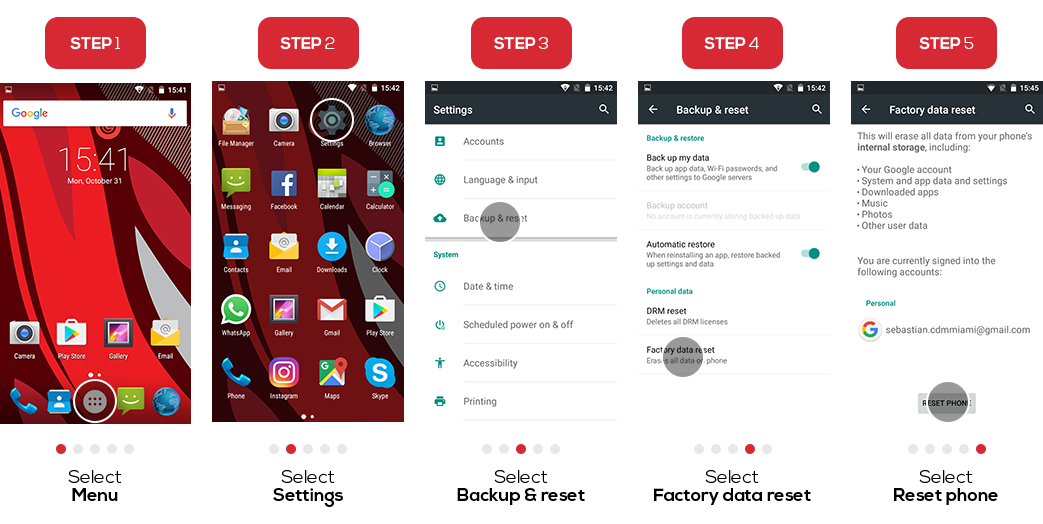
10. Perform a Factory data reset: We all use our phones 24/7 without giving it a rest. If you notice that your device starts working strangely, is operating very slowly, or the battery life is too short a good solution may be to reset your device. Go to SETTINGS>BACKUP AND RESET>FACTORY DATA RESET. Once the process is completed your device will be restored to the original factory settings.

El teléfono podría estar bloqueado, presionar la tecla “Encendido” una vez y verificar.